
Sync Subscription
Fix subscription sync across your Apple devices by enabling iCloud Keychain and verifying your Apple ID.
Your subscription works on all devices signed in with your Apple ID—iPhone, iPad, and all your Macs. You won’t be charged twice. Certain iCloud settings must be enabled for the subscription to sync properly between devices.
1. Ensure Same Apple ID
Confirm the same Apple ID email shows on all devices.
- iPhone/iPad: Settings → [Your Name] at the top
- Mac: System Settings → [Your Name] or Apple ID
2. Enable iCloud Keychain on All Devices
Turn this on for every iOS and macOS device where you want to share the subscription so it can sync through your Apple ID.
On iPhone/iPad
- Settings → [Your Name] → iCloud
- Tap Passwords
- Toggle Sync this iPhone/iPad on
- Restart Spokenly
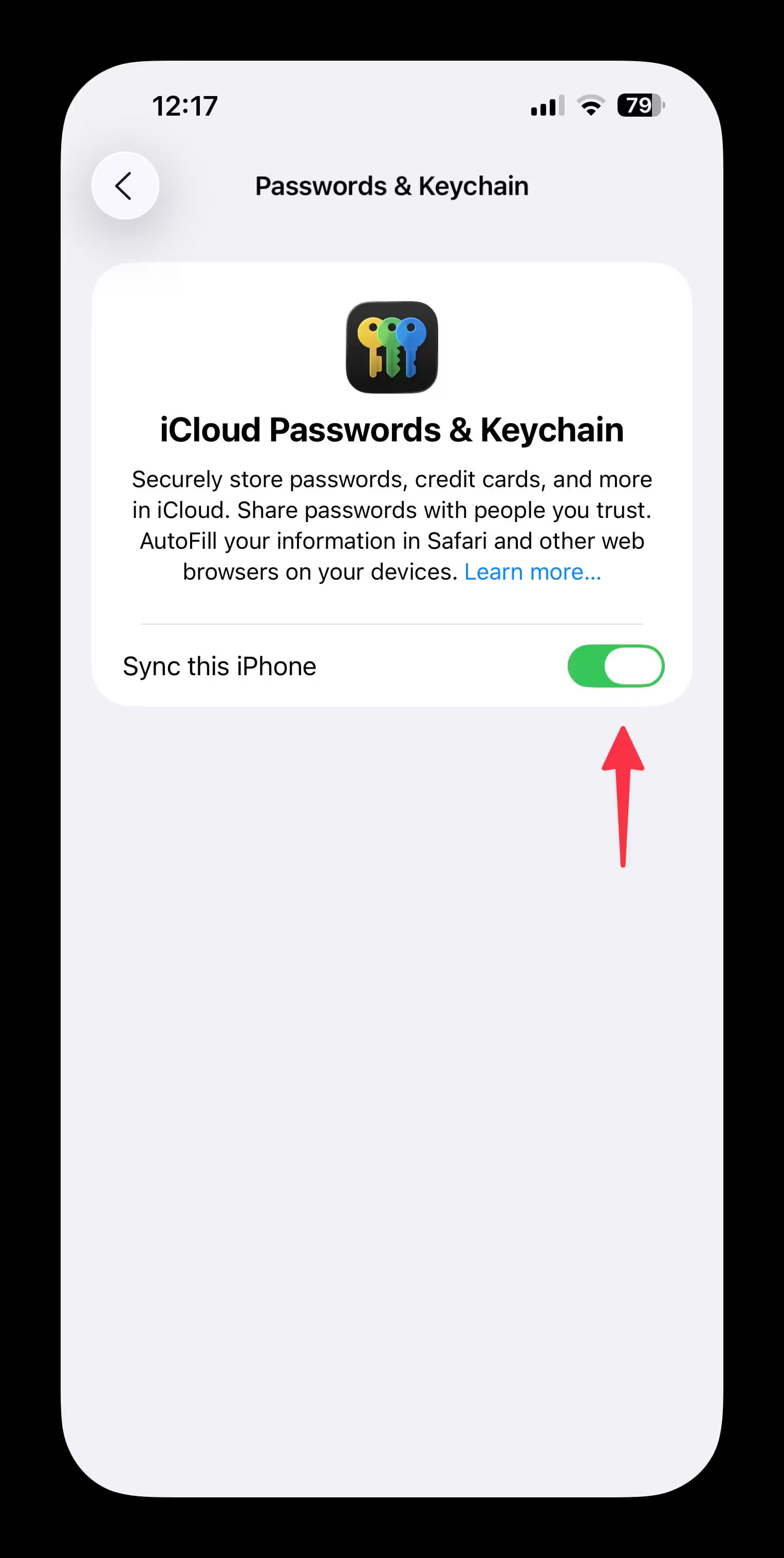
On Mac
- System Settings → [Your Name] → iCloud
- Click Passwords
- Toggle Sync this Mac on
- Restart Spokenly
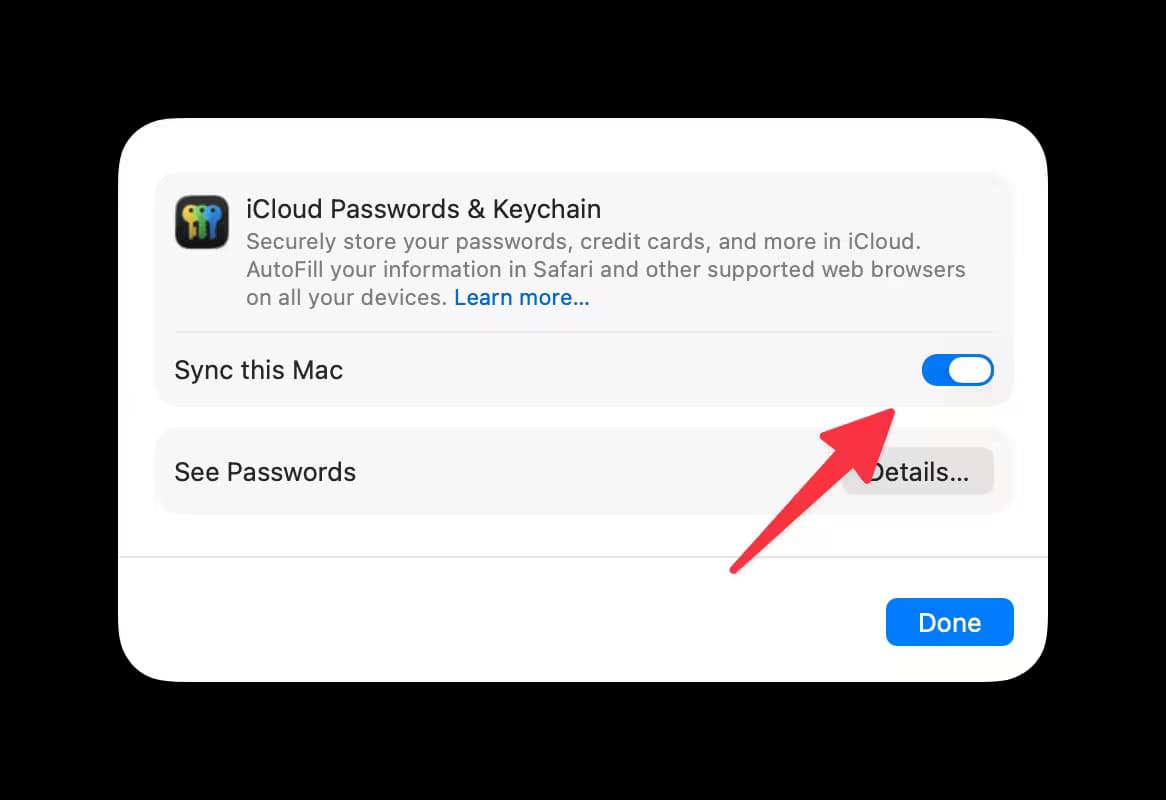
3. Verify Your Subscription
Check that Spokenly is active in your Apple account:
- iPhone/iPad: Settings → [Your Name] → Subscriptions → find Spokenly
- Mac: System Settings → [Your Name] → Media & Purchases → Subscriptions → Manage
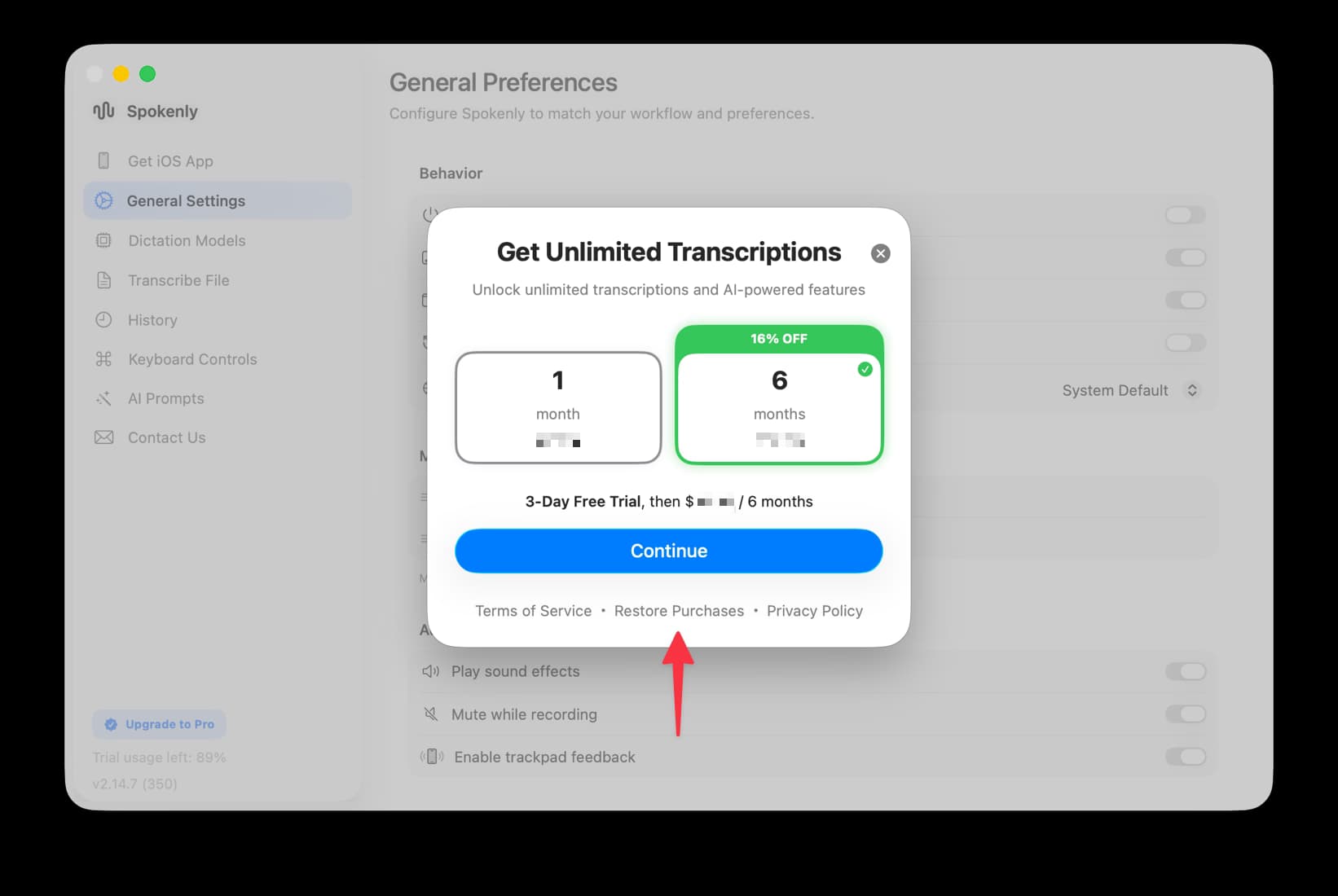
4. Use Restore Purchases (Alternative)
If the steps above didn’t work and you see the payment screen, click Restore Purchases. The app will reactivate your existing subscription from your Apple ID on that device.
Need Help?
- Email admin@spokenly.app